Showing posts with label GoogleAppEngine. Show all posts

Saturday, August 27, 2011

Django + Google App Engine == love

The support for Django in Google app engine is almost completely perfect. The only thing missing is the fact that you cannot query on joins. A build of Django that is up to date and takes this fact into account is available called "django-norel"

To get started on converting Google App Engine Projects to Django you can view this post : http://code.google.com/appengine/articles/django-nonrel.html

And to get started on converting Pure Django projects on Google App Engine you should read this :
http://www.allbuttonspressed.com/projects/djangoappengine

Thursday, August 18, 2011

Using the django version that comes with google app engine as your default

I have google app engine installed in my C: drive and the path to django looks like this :
I modified my PYTHONPATH adding "C:\Program Files\Google\google_appengine\lib\django_1_2;" at the end as shown (the ; should not be important but some ide's need it to scan properly):


To run the django tools from the command line (not google app engine specific ... valid for all django installations): 

I then added the django's bin folder "C:\Program Files\Google\google_appengine\lib\django_1_2\django\bin" to my system PATH as shown:


Next you need to fix the file association using the following registry script (save as .reg and merge)


Windows Registry Editor Version 5.00
[HKEY_CLASSES_ROOT\py_auto_file\shell\open\command] @="\"C:\\PYTHON\\App\\python.exe\" \"%1\" %*"


This basically adds this key:


Now you can test it from the command pro as follows :
"django-admin.py --version"


Enjoy!

Monday, June 20, 2011

Some interesting facts about Google App Engine

Google App Engine is awesome. So beyond this simple fact here are some other interesting ones:

Account Registration
For the first time you click on "Create Application" (https://appengine.google.com/)  You need to sign up with a phone number. Facts:
  • If you try this without a supported carrier (mentioned here) You will start to get the error message "You have sent too many SMS verification messages" In this case goto http://appengine.google.com/waitlist/sms_issues and mention why you are getting this error (your phone number). Your case will be evaluated and if found eligible your appspot account will be activated.
  • You phone number is linked to your google account. You cannot use the same phone number to register for appspot using another account. 
Application Registration

When you create a new application not all options will be changeable. At the time of this writing you can see options which are available for change and which are readonly (Authentication Options used to be readonly as well apparently but as you can see I can change them right now):


And since you cannot reuse the application ID it is important to set it right the first time.

Download Application Files
There is no way to download files from AppEngine (you can only upload....this actually makes me feel secure). So you should use your own version control system (I suggest http://www.bitbucket.org)

AppEngine is designed for fast response times
If an app routinely takes a long time to respond to requests, AppEngine will punish it to make room for faster requests.

Enjoy!

Friday, June 17, 2011

Google App Engine Python + PyCharm = love

I think I have just found the best debugging / development environment ( IDE ) for google app engine. PyCharm.

Not surprising. Its from JetBrains :) They guys that make ReSharper (a lovely VisualStudio C# plugin) and IntelliJ IDEA (the best performing java development IDE I used a long time ago ... one that people love and use despite free eclipse / netbeans being available).

I like my IDEs snappy and PyCharm is like a Snappy Snake :)

And it feels like its made with google app engine (AND / OR)  django in mind.

NOTE: PyCharm version 1.5, Google App Engine version : 1.5.0

As soon as you start PyCharm you see the following screen :
Click on Create a New Project and you get the option to create a GoogleAppEngine application right off the bat as shown:
Setup the project name (your choice) / location (your choice) and type (as Google App Engine project) and click Ok and you are presented with the following screen:

(NOTE: I was working on x64 machine. That is probably why the SDK is not filled ... nonetheless)
Filled in the SDK as : "C:\Program Files (x86)\Google\google_appengine" (note working on x64 machine otherwise it is : "C:\Program Files\Google\google_appengine"
Setup the python interpreter (I prefer to use portable python that is why it does show up by default) by clicking on the browse icon and then selecting Add.

And Finally click Ok.

I now have a debug-able Google App Engine project available. In the screen shot below I setup a break point, just clicked the debug icon, waited for app engine to start and browsed to http://localhost:8080

Just installing PyCharm and creating a new project and I can already debug! This is much more like the visual studio experience that I love and adore and was afraid I might never find with GAE.

Also check out pycharm figured out the google app engine import locations without me telling it anything other than the google app engine install path:


If it wasn't for this software I really was about to give up on GAE because without a powerful trouble shooting / development environment like this maintaining applications would have been a real hassel.

Yes I am madly in love with Python and now PyCharm.

Enjoy!

Getting started with Google app engine (python) + portable python

I fell in love with python a long long time ago. But somehow didn't get the time to work with google app engine. Now that a project came up that requires some of the cool features of google app engine (like mail receiving) I am working on it.

Getting the development launcher to work with portable python (for version 2.5.4) was slightly tricky in that you need to point to the python executable rather than the folder in which the executable is found. i.e in my case in "Google App Engine Launcher" go to Edit -- Preferences and notice the "Python Path". I needed to set it to "C:\PYTHON\App\pythonw.exe" OR "C:\PYTHON\App\python.exe"

Also I set the editor to pyscripter "C:\PYTHON\App\Pyscripter.exe" as shown.
Next when I click on edit in launcher now I can get a cool editor as shown.:
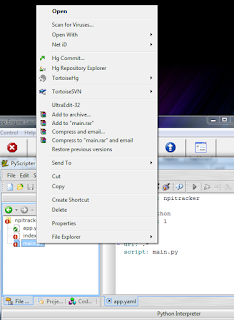
You can also view the files by using the file explorer in pyscripter using the active script option as shown:


Notice that not only can I view all the files in the same directory but also see my commit options since I have tortoise Hg installed:


NOTE : I have not yet managed to get debugging working with pyscripter .... stop reading here. For debugging with PyDev check this out :)
If you want to simply debug your application with pyscripter you can add the following folder to your PYTHONPATH environment variable "C:\Program Files\Google\google_appengine". The contents of this folder are shown:
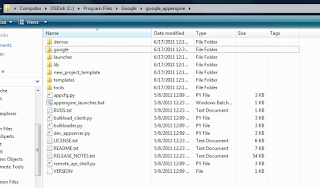
You also need to add a pythonpath entry for select folders in"C:\Program Files\Google\google_appengine\lib"
The contents of this folder in my case are shown:


so the complete PYTHONPATH setting is : "C:\Program Files\Google\google_appengine;C:\Program Files\Google\google_appengine\lib\antlr3;C:\Program Files\Google\google_appengine\lib\django_0_96;C:\Program Files\Google\google_appengine\lib\fancy_urllib;C:\Program Files\Google\google_appengine\lib\graphy;C:\Program Files\Google\google_appengine\lib\ipaddr;C:\Program Files\Google\google_appengine\lib\simplejson;C:\Program Files\Google\google_appengine\lib\webob;C:\Program Files\Google\google_appengine\lib\yaml\lib"

Note my python path settings:
After you have set the pythonpath you MUST RESTART GAE Launcher. Now click edit and run main.py
You can see a successful break point below:
But this is just a script running outside a web server. You can launch the Google App Engine web server INSIDE of pyscripter to get the debugging goodness of a running web application as follows.

Notice the commandline for the python started by launcher using process explorer :
In my case it was : "C:\PYTHON\App\pythonw.exe "C:\Program Files\Google\google_appengine\dev_appserver.py" --admin_console_server= --port=8080 D:\CODETEST\npitracker\npitracker"

Now you are going to configure pyscripter to run the file "C:\Program Files\Google\google_appengine\dev_appserver.py" for us. 
Open this file in pyscripter and select run -- Command Line parameters.
Set the command parameters to your project as shown:

In my case I kept the command line parameters as : "--admin_console_server= --port=8080 D:\CODETEST\npitracker\npitracker"

Now setup a breakpoint anywhere cool in the project as shown:

Switch back to "dev_appserver.py" and run. Browse to your website (http://localhost:8080) in my case and enjoy the debugging goodness.

Note: (GAE version 1.5.0)

PS: for python path option in launcher "C:\PYTHON\App\" did not work. If I left it at that and run a project the browse button does not become enabled in the launcher and a busy indicator is shown next to the project.

Enjoy!